Viewing Synced Reading/Completion Task Status
When one of the above sync modes is enabled, the only task status information that is rolled up to the original document or assessment is for finished reading/completion tasks. No other task status is communicated. For this reason, rolled up task status is limited to the following reports:
- Tasks by Content - Current
- Tasks by Content - All Tasks
- Tasks by User - Current
- Tasks by User - All Tasks
- My Tasks
- Assessment Results by Content
- Assessment Results by User
- Assessment Statistics
|
Note: You can also see rolled up tasks status in the following superseded legacy reports:
|
- To include rolled up reading/completion task information, click Reports, and then do one of the following:
- Click Tasks by Content, and then click Tasks by Content - Current or Tasks by Content - All Tasks. Select at least one original document or assessment with synced localized copies, plus any other documents/assessments you want to include, and then click OK.
Notes:
- The title of a original is preceded by a down arrow character (↓).
- Because only reading/completion task status is rolled up in a report, select a original document/assessment in the Published or Archived status. Also, at least one of the localized copies must have been approved so that its reading/completion tasks have been assigned.
- Click Tasks by User, and then click Tasks by User - Current or Tasks by User - All Tasks. Select at least one user assigned to read or complete a synced localized copy in the Published status, plus any other users you want to include, and then click OK.
- Click My Tasks & Assessments, and then click My Tasks.
- Click Assessment Reports, and then click Assessment Results by Content, Assessment Results by User, or Assessment Statistics. Select at least one original document or assessment with synced localized copies, plus any other documents/assessments you want to include or at least one user assigned to read or complete a synced localized copy in the Published status, and then click OK.
- Click Tasks by Content, and then click Tasks by Content - Current or Tasks by Content - All Tasks. Select at least one original document or assessment with synced localized copies, plus any other documents/assessments you want to include, and then click OK.
- Do one of the following:
- If you're setting up a task report, under Task Options, select only Complete and Show localized tasks on original.
Note: Only completed reading/completion tasks from localized copies are shown for the original document/assessment. If Incomplete is selected, you'll only see incomplete tasks from the original, while you'll see complete tasks both from the original and from all of its localized copies.
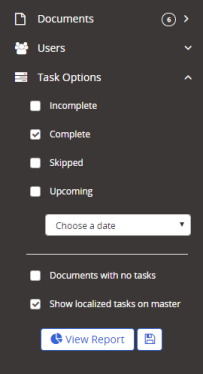
- If you're setting up the Assessment by Content or Assessment by User report, under Options, select only Complete and Show localized tasks on original.
Note: Only completed reading/completion tasks from localized copies are shown for the original document/assessment. If Incomplete is selected, you'll only see incomplete tasks from the original, while you'll see complete tasks both from the original and from all of its localized copies.
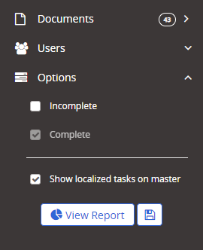
- If you're setting up the Assessment Statistics report, under Options, select Show localized statistics on original.
- If you're setting up a task report, under Task Options, select only Complete and Show localized tasks on original.
- Click View Report.
- Select a layout.
- If you're viewing a task report, in the Data section heading, click
 , click Show/Hide Columns, select Task Completed on Localized Copy, and then click Done.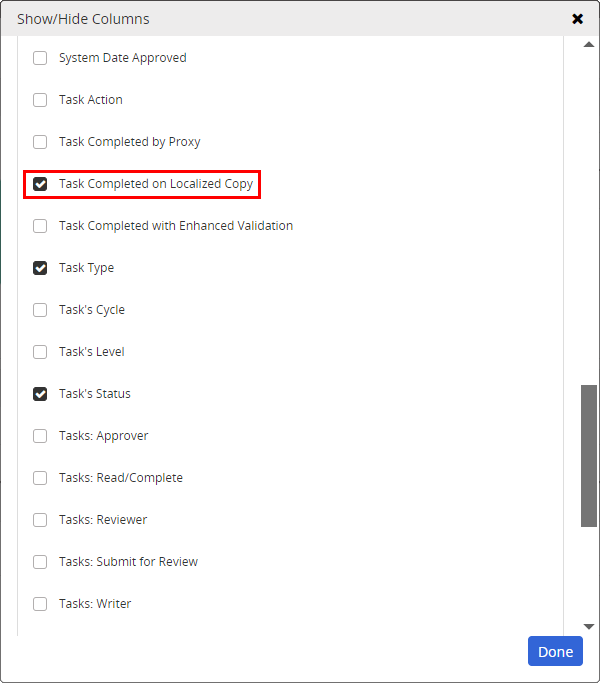
- (Task reports only) Depending on the report and the currently selected layout, do one of the following to view reading/completion task status:
Notes:
- The steps that follow assume that the default column groupings and arrangements for the specified layouts have not been changed.
- The assessment reports do not currently include the option of showing the Tasks Completed on Localized Copy column.
- A supported task report with the Task Type layout selected: In the Data section, click the Task Type: Read/Complete header to show to see individual reading/completion tasks. Look at the Tasks Completed on Localized Copy column to see which complete tasks were rolled up from localized copies.
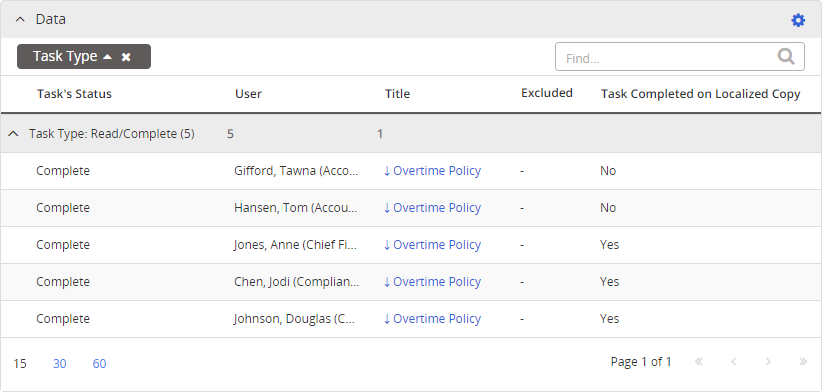
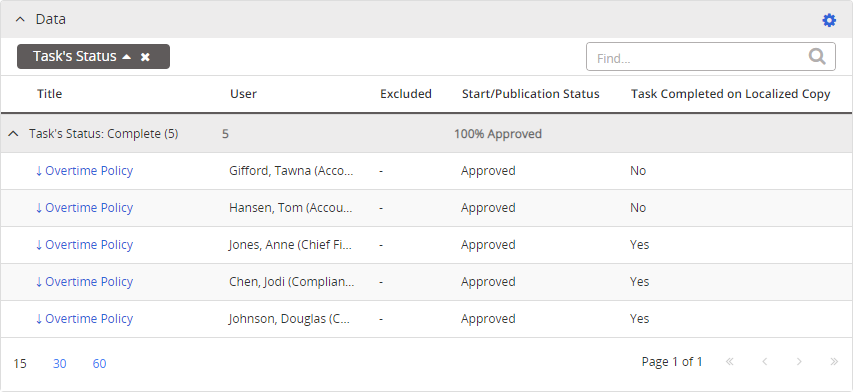
- A supported task report with the Task Status layout selected: In the Data section, click the Complete task status header to see individual tasks. Look at the Tasks Completed on Localized Copy column to see which of those tasks were rolled up from localized copies.
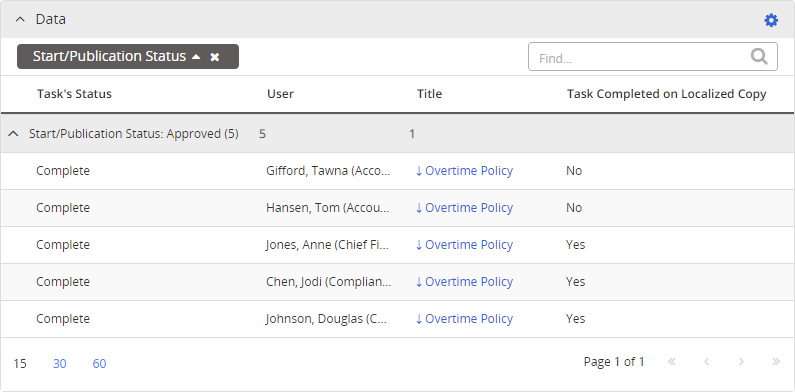
- A supported task report with the Publication Status layout selected: In the Data section, click the Approved or Archived publication status header to see individual tasks. Look at the Tasks Completed on Localized Copy column to see which of those tasks were rolled up from localized copies.
 Product Information
Copyright
Product Information
Copyright
This publication was written and produced at NAVEX Global, Inc., Lake Oswego, Oregon. This publication or any portion thereof is confidential and/or proprietary and may not be reproduced or used in any manner whatsoever without the express written permission of NAVEX Global, Inc.
Copyright © 2023 NAVEX Global, Inc. NAVEX Global® is a registered trademark/service mark of NAVEX Global, Inc. The NAVEX Global® logo is a trademark/service mark of NAVEX Global, Inc. Unauthorized use of NAVEX Global, Inc.’s trademarks/service marks is strictly prohibited without prior written permission from NAVEX Global, Inc.